
Imagine a user navigating a new website who encounters a feature that isn’t working as expected. They want to provide feedback, but words alone may not accurately explain the issue.
What if they could capture the problem in action, add a voiceover explaining their experience, and share it directly with the development team?
That’s where video feedback helps. It gives users a clear way to communicate issues and provides developers with the context they need to understand and resolve them.
Let’s explore how to capture video from a website and use it to create more effective, engaging online interactions.
Why Is Video Feedback From Websites Necessary?
Video feedback is quickly becoming a standard part of digital collaboration. Here’s why it can be a game-changer for websites.
1. Improved Communication
Users often struggle to describe technical issues accurately. Being able to capture video from a website provides a clearer solution by showing exactly what happened on their screen.
2. Empathetic Understanding
Watching a user interact with a website helps developers understand their frustrations, confusion, and challenges more clearly.
3. Faster Bug Identification
A picture may be worth a thousand words, but a video provides even more context. Video feedback makes it easier to locate bugs and understand the steps needed to reproduce them.
4. Better User Experience
Video feedback shows how people navigate and use a website. These insights can help teams improve both the interface and the overall user experience.
5. Educational Value
Recorded feedback can also become a useful learning resource. It helps teams understand user behaviour and identify recurring usability patterns.
Video Capturing vs. Video Recording
When discussing video feedback, two similar terms often appear: video capturing and video recording. Although they sound interchangeable, they can refer to different processes.
- Video capturing: Capturing video from a website usually means recording on-screen activity along with the user’s voiceover. Users can navigate the website, highlight issues, and explain their thoughts as they explore. This real-time narration of the user experience makes video capture a powerful feedback tool.
- Video recording: Video recording traditionally refers to creating standalone video content using a camera or a separate recording application.
For website feedback, video capture provides a more immersive, transparent, and actionable way for users to communicate issues and suggestions.
Steps to Capture Video Feedback Using ruttl
Ready to provide video feedback to your team? Follow these steps to get started with ruttl.
1. Get Started
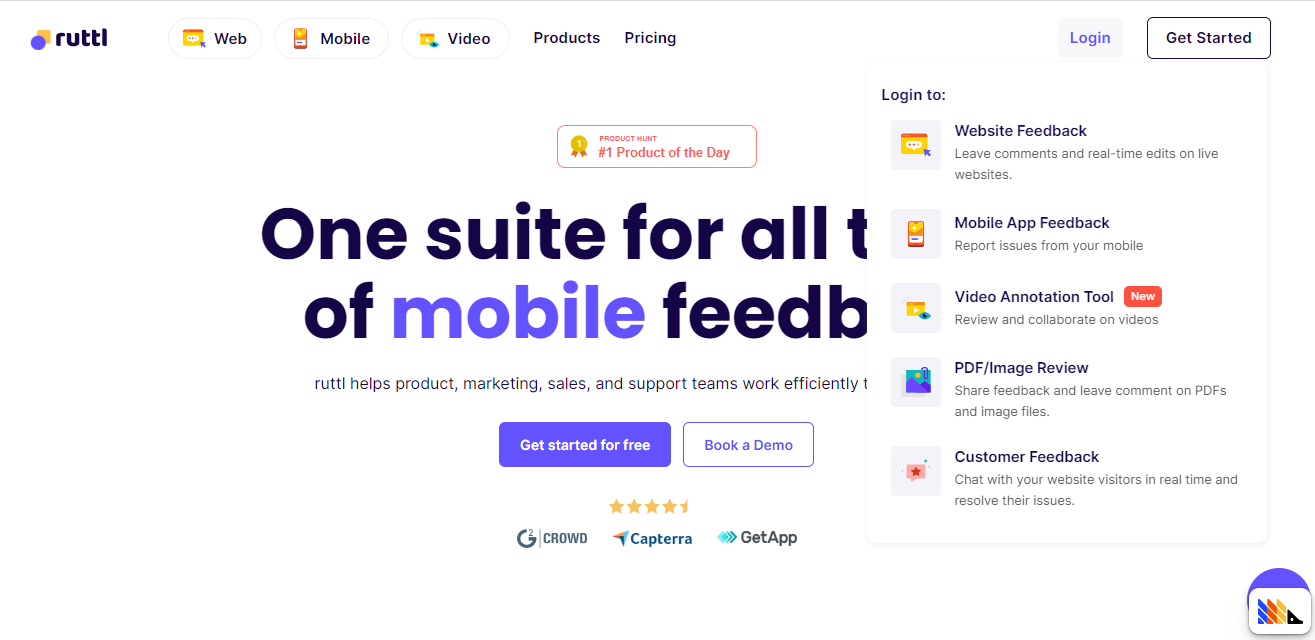
Sign up for ruttl, log in, and open the Website Feedback section.
2. Create a New Project
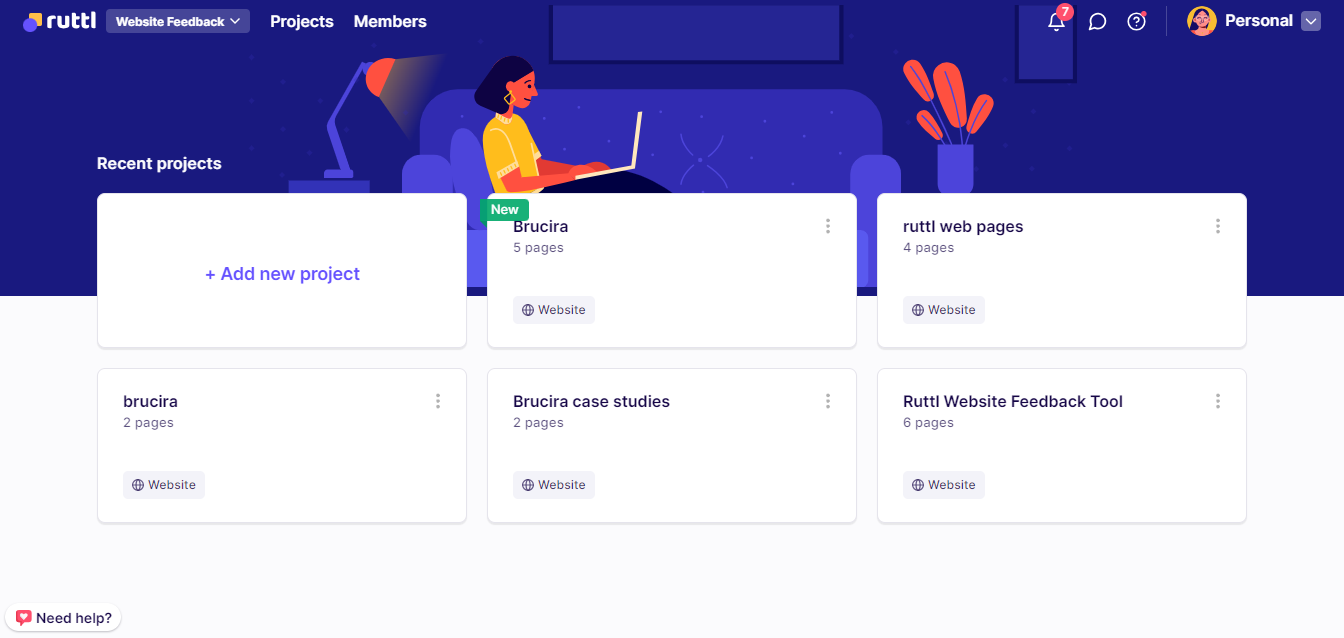
Click Add New Project, followed by Create.
3. Enter the Project Details
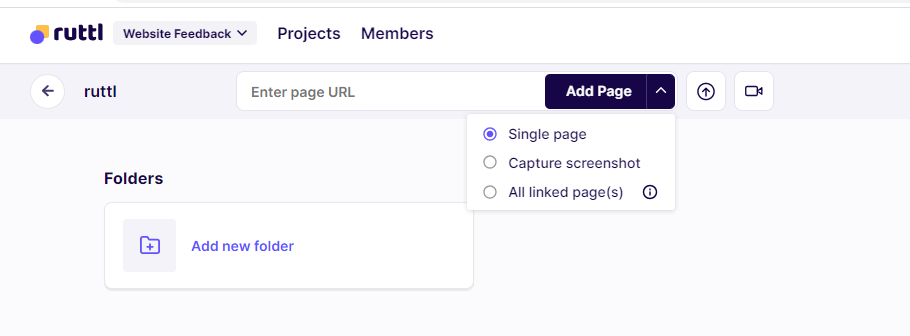
Give your project a name and enter the URL of the website you want to review.

4. Add Subpages
You can add related website pages for more comprehensive feedback. If you don’t need them, simply skip this step.
5. Leave a Video Comment
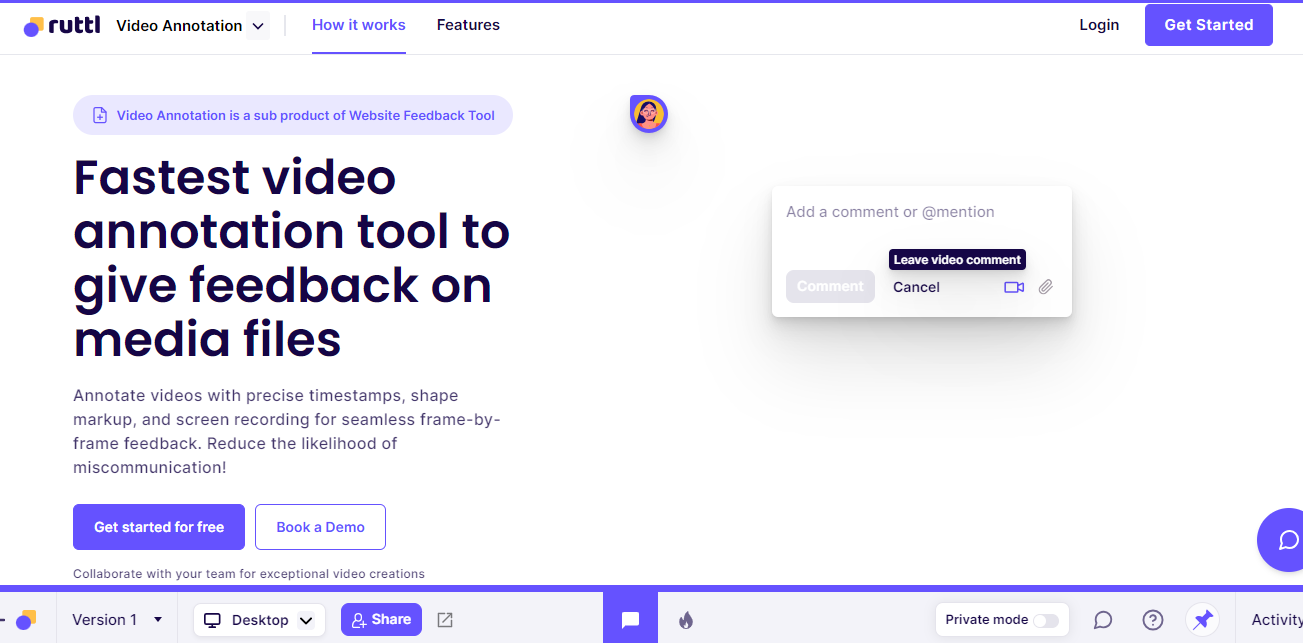
Click the comment icon and select the area of the website you want to discuss. Then click the Leave Video Comment icon to begin recording.
6. Save and Review
When you finish recording, click Save. Your video feedback will appear in the comments section on the right side of the screen.
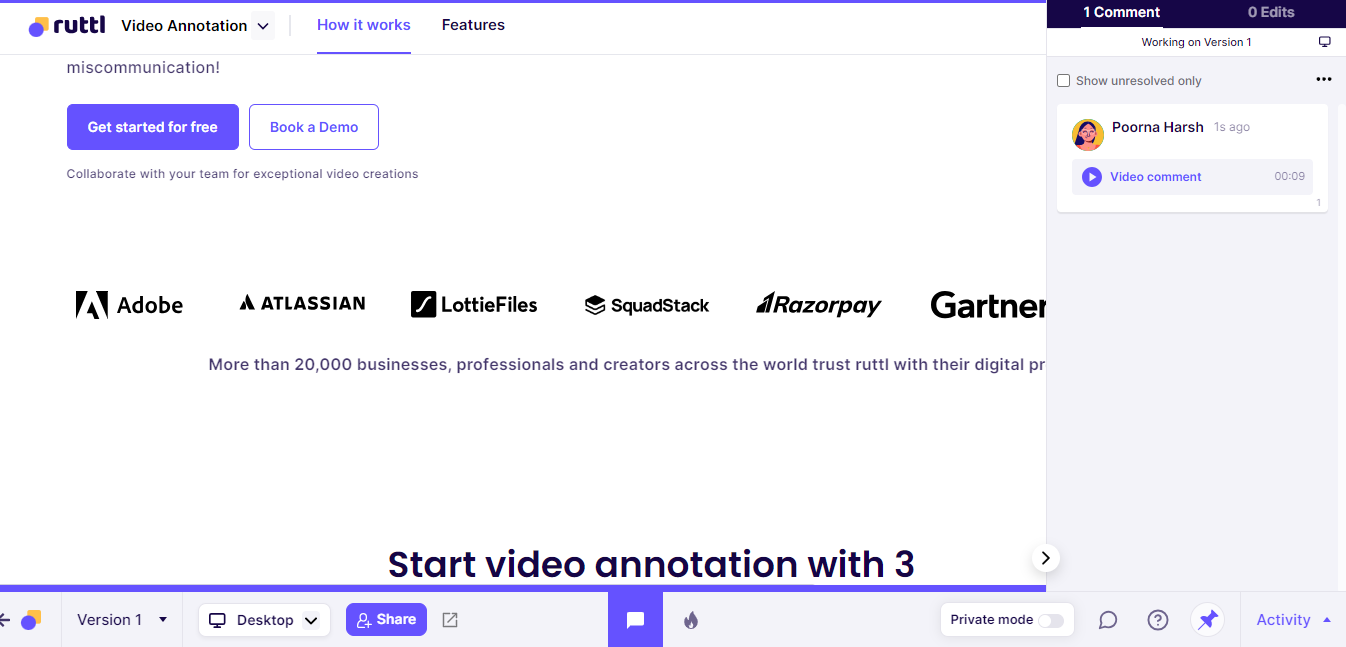
That’s it—you’ve captured and shared video feedback using ruttl.
How to Capture Video From a Website
Capturing video from a website can seem complicated, especially with so many tools available. Here’s how traditional screen-recording software works and how it compares with dedicated customer feedback platforms like ruttl.
Using a Screen-Recording Tool
Recording a website with a third-party tool may require downloading an application or installing a browser extension.
- Choose a tool: Open the website you want to record and launch your preferred screen-recording application. Mac and Windows devices also include built-in screen recorders.
- Check your equipment: Select and test your microphone and camera. Remember to grant the required permissions before recording.
- Choose what to capture: Most tools let you record your entire screen, an application window, or a browser tab. Recording a browser tab can prevent private notifications from appearing in the video.
- Start recording: Begin the recording and demonstrate the issue.
- Save and share: Save the video and create a shareable link. For example, Screencastify can save recordings to Google Drive, while Loom hosts them directly on its platform.
You may also need to trim the recording or add annotations before sharing it.
Although this process is manageable, asking customers to install and learn an additional tool creates unnecessary friction. A dedicated website feedback platform can make the process much easier.
Using a Dedicated Video Capture Tool
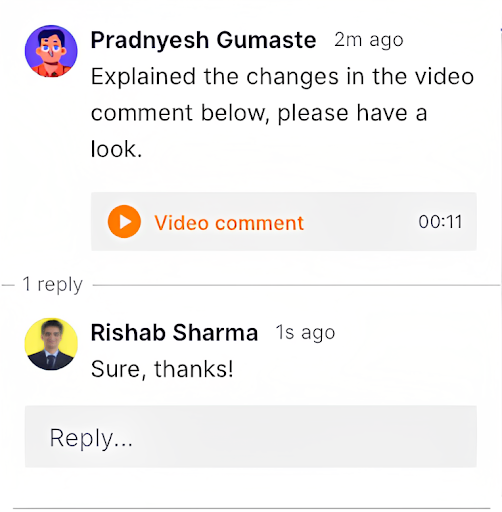
Dedicated tools like ruttl make video feedback easier to capture and manage. Users don’t need to install separate software or worry about losing recordings.
Here’s how ruttl simplifies video feedback:
- Streamlined workflow: ruttl provides one organised workspace for reviewing websites and managing feedback.
- No additional downloads: The video feedback tools are built into the platform, so users don’t need a separate recording application.
- Focused recording: Users can record the website and provide targeted feedback without capturing unrelated desktop notifications.
- Easy sharing: Video feedback appears directly in the project, where team members can review and act on it.
ruttl turns video feedback into a simple part of the website review process, helping teams communicate clearly and improve websites faster.
Top Tools for Capturing Video Feedback From Websites
Here are some of the leading tools for capturing and sharing video feedback.
1. ruttl: Website Feedback and Collaboration
ruttl makes it easy to record and share video feedback directly on a live website. Its integrated collaboration tools help teams keep feedback organised and actionable.
2. Loom: Screen Recording and Sharing
Loom is a user-friendly recording tool available as a desktop application and browser extension. It supports basic editing, sharing, and time-stamped comments and reactions.
3. Screencastify: Quick Recording and Editing
Screencastify is a Chrome extension for capturing and editing videos. It can work offline and includes features such as drawing, highlighting, and mouse tracking.
4. Zight: Video, GIFs, and Annotations
Zight, formerly known as CloudApp, supports screen recording, GIF creation, and image annotation. It can be useful for teams that need multiple ways to communicate visual feedback.
Give Users the Power of Video Feedback
Capturing video feedback from websites is easier when you have the right tool. Choose a platform that fits your workflow and makes it simple for users to record, explain, and share their experiences.
With ruttl, teams can collect clearer feedback, identify issues faster, and improve website experiences more efficiently.
Frequently Asked Questions
**What is video feedback, and why does it matter?**
Video feedback lets users record their screen and voice to show developers exactly what issue they encountered. This makes bug reports and feedback much clearer than text alone.
**What is the easiest way to record a website for feedback?**
Dedicated tools like [ruttl](https://ruttl.com/) let users record video feedback directly on a live website without downloading separate screen-recording software.
**Is there a free video feedback application?**
Yes. ruttl and tools such as Loom offer free plans that let users record, comment on, and share feedback from their browser.
**What should I look for in a video feedback platform?**
Look for ease of use, focused recording, simple sharing, and minimal setup. [ruttl’s video feedback tools](https://ruttl.com/video-annotation-tool/) provide these capabilities in one platform.